compareMatik puts 2 to 9 videos or photos side by side on your computer and plays them frame by frame, in perfect sync, so you see exactly what changed between versions, takes, grades or AI models. Stop on any frame, zoom to the pixel, mark it up and paste it into a chat.
Drop2–9 videos or photos onto one window.
Play in syncOne clock. Every pane, the same frame.
CompareWipe, overlay, difference, flicker.
Look closerZoom to 1600 %, read any pixel.
ShareDraw on it, ⌘C, paste into any chat.
Side-by-side video & photo comparison · Mac & Windows
See exactly what changed.
For editors, colourists, VFX and AI-video artists. Two grades of one shot, two upscales, nine renders of the same prompt from different models: drop them in, and the difference shows. Try the wipe on the right: it's a paper model of the real thing.
Coming soonFree for Mac. The download appears on this page the moment it's out.
FreemacOS 26+ · Apple silicon · Windows 11 22H2+English · TürkçeNo account in the appNothing leaves your Mac
A · cobaltB · vermilion
00:00:00:00FR 000
A paper model of compareMatik's Wipe: one risograph plate, two grades. The real thing runs on Metal, on your Mac.
Your turn: drag across the plate. W turns the wipe, \ flickers A/B, Space pauses, ←→ step one frame.
2–9videos & photos, in sync1600%pixel-accurate zoom⌘Cframe → any chat4layouts0bytes leave your Mac
Every feature · most important first
Fourteen things it does. One by one.
01Sync
Up to nine sources. Frame-locked.
Drop 2 to 9 videos or photos onto the window. Different frame rates, sizes and lengths are fine. One master clock drives every pane, so whether you play, pause, scrub or step, they all show the same frame. Give a clip an offset and it stays locked from there.
00:00:00:00One plate in nine inks. They start out of step, like clips dropped with different offsets; Align starts puts every pane on the same frame.
Add or remove panes: the grid follows compareMatik's own rule (4 → 2×2, 5–6 → 3×2, 7–9 → 3×3).
PlateFive metronomes, one beat. That's what nine panes on one clock feel like.
02Wipe
Drag a line. See the change.
Two sources in one picture, split by a divider you drag. A on one side, B on the other: the classic before/after for grades, retouches, denoise and upscales. Press W to turn it horizontal. Pick any two panes as A and B, swap them with ⇧\. Two photos work just as well as two videos.
⌘3WipeWWipe orientation⇧\Swap A/B
ABW
Vertical, then W: horizontal.
03Overlay · Difference · Flicker
When the change is too small to see.
Lay B over A with an opacity slider, like an onion skin. Switch the blend to Difference and only what changed lights up; identical pixels go pure black. Or Flicker: A and B alternate every few frames (or every time you press \), and your eye catches the jump at once.
Overlay
OpacityB fades in over A.
Difference
DifferenceSame pixels go black; a nudge or a retouch lights up.
AB
FlickerA, B, A, B: the eye finds it.
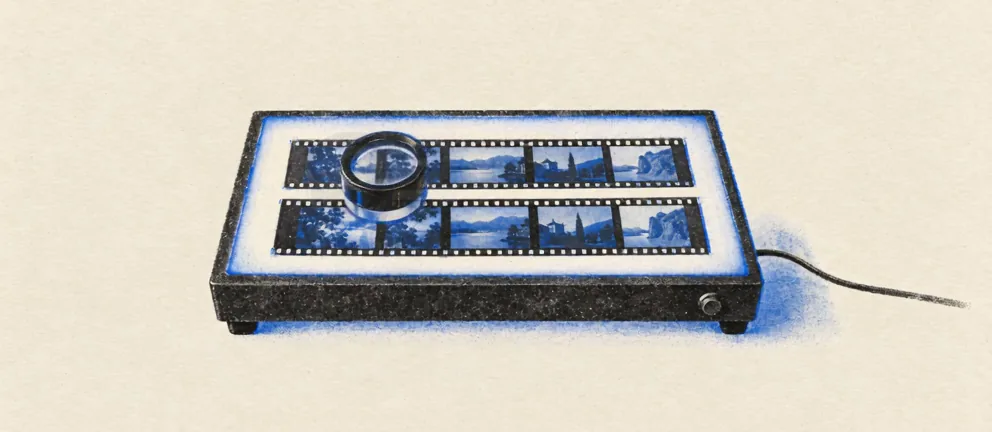
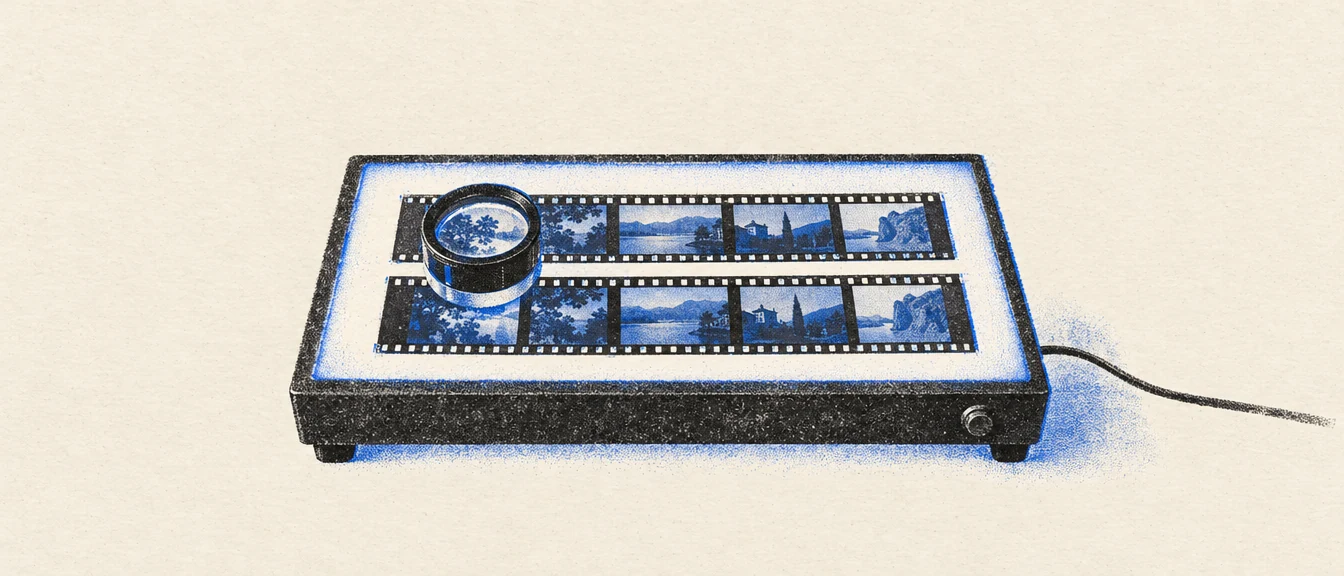
PlateThe lightbox: two strips, one loupe. The oldest compare tool in the edit room.
04Copy & paste
⌘C. Paste it anywhere.
⌘C copies the selected pane's frame at full source resolution, with your notes on it. ⇧⌘C copies the whole layout as you see it. It lands on the clipboard as an image, not a file, so it pastes straight into a chat or an email. A small note confirms what went where: pane, timecode, size. You can also drag a frame out to Finder or into a chat window.
WhatsApp
Slack
Mail
Messages
Notes
Telegram
Figma
Photoshop
⌘C
Which take do we keep?
This one, look at the arrow.
Copied V2 · 01:00:12:04 · 3840×2160
PlateSigned, stamped, sent: one keystroke from frame to inbox.
05Annotate
Draw on it. Say what's wrong.
Press D and draw right on the picture: pen, highlighter, arrow, line, rectangle, ellipse and text, in eight colours with a background box so text stays readable on bright footage. A note belongs to the frame it was drawn on and stays glued to the picture through zoom, pan and relayout. Markers on the timeline show where the notes are; ⌥←⌥→ jump between them.
Your turn: draw on the frame, press ⌘C (or Copy), then paste it anywhere.
06Zoom
1600 %. Every pane at once.
Scroll or pinch to zoom from 10 % to 1600 % around the cursor, pixel-accurate at every level. Zoom and pan are linked across panes, so every source shows the very same detail; unlink them when you need to. ⌘0 goes to 100 %, F keeps everything fitted.
⌘=⌘-zoom⌥⌘Llink zoom & pan
V1100%200%400%800%1600%
V2100%200%400%800%1600%
Linked: both panes, same detail
07Magnifier · Colour Dropper
Stop on a frame. Read the pixel.
Press M and drop a Magnifier (200–1000 %, nearest-neighbour for pixel peeping); it sits on the same spot in every pane. Press E for the Colour Dropper: 8-bit and 10-bit RGB, float, hex and Rec.709 luma, live during playback, read from the decoded source. Click a value to copy it.
Your turn: move over the frame (on a phone, touch and drag). Arrow keys move one pixel, ⇧ ten.
8-bit
—
10-bit
—
Hex
—
Luma 709
—
PlateEvery dot counts. So does every pixel.
08Timeline
Line them up. Then loop the bit that matters.
Every source gets its own track. Drag to offset it frame by frame, snap to the playhead, or align everything by source timecode in one click. Set I and O to loop a range. Hide a track, solo its audio, reorder panes by dragging headers.
Offsets → aligned → In/Out loop.
09Export
What you see is what you export.
Export the pane, the whole layout, or every pane as separate files: PNG (8 or 16-bit) or JPEG, with the colour profile. Render the comparison itself as ProRes, H.264 or HEVC video, In/Out respected, with labels, timecode and info burned in if you like. It uses the same renderer as the viewer, so the file matches the screen. ⌥⌘E repeats the last export in one go.
⌘EExport still⇧⌘EExport video
PNG16-bitDisplay P3
JPEGq 0.92sRGB
MOVProRes 422 HQburn-in TC
MP4HEVCIn → Out
Rendering the composite…
PlateFrom reel to reel: the comparison goes out exactly as you saw it.
10Overlays · Guides
Know exactly what you're looking at.
The info overlay (N) shows file name, label, resolution, frame rate, codec, bit depth and frame number. The timecode overlay (T) reads the source timecode, drop-frame correct, or counts record-run, frames or seconds. Turn on safe areas and aspect masks: 2.39, 1.85, 16:9, 9:16, 4:5, 1:1, centre cross and thirds.
Load .cube LUTs (1D or 3D, up to 65³) for every pane or just one, with a mix slider; they're saved inside the project. A real-time sharpen per pane helps you see whether an upscale really added detail. The colour dropper can read before or after them.
warm-print.cubeLUT mix
Sharpen off
Sharpen on
12Photo Mode
Only photos? Flip through them.
Drop only stills and compareMatik switches to Photo Mode: ← and → flip through the photos. Perfect for picking the best shot of a burst, or checking a set of retouches one after another. JPEG, PNG, HEIC, TIFF, WebP, AVIF and DNG, with EXIF orientation and colour profiles honoured.
←→next photo
13Presentation Mode
Show it full screen.
⇧⌘P hides every bit of interface and fills the screen with the comparison. Move the mouse and the transport appears; the keys keep working. Made for review calls, client screens and the big monitor in the grading suite.
⇧⌘P
A schematic, not a screenshot.
14And also
The small things that save the day.
Projects that find their files
Save the whole comparison as a .cmk project: media, offsets, layout, notes, LUTs. Moved the footage? Point at the folder and it relinks by name, size and duration.
⌘3⌥W
Every key is yours
Every action has a shortcut and every shortcut can be changed: search, click, press the new key. Conflicts are flagged before they bite.
HDR PQ
HDR badge
PQ and HLG clips are marked, so you know when what you see isn't what the file holds.
ENTR
English & Turkish
The whole app, menus to tooltips, in English and Turkish.
Inside the app
The real thing. Screenshot by screenshot.
Every camera in these screenshots is a simulation of one test chart; no real brands or models.
Shortcuts
Every action has a key. Every key can change.
SpacePlay / pause
JKLReverse · stop · forward (again = faster)
←→Step one frame (⇧ = ten)
IOSet In / Out
1–9Select pane
ZMaximize pane
⌘1–⌘4Row · Grid · Wipe · Overlay
WWipe orientation
\⇧\Flicker A/B · swap A/B
MEMagnifier · Colour Dropper
NTInfo · timecode overlay
DAnnotate mode
⌘C⇧⌘CCopy pane frame · composite
⌘E⇧⌘EExport still · video
⇧⌘PPresentation Mode
⌘JGo to timecode
Privacy
Data not collected. Nothing to collect.
The app itself has no account, no cloud, no telemetry and no analytics. It has no network access at all, so your footage never leaves your Mac.
Free
No account in the app
No cloud
No telemetry
No analytics
No network access
App Sandbox
FAQ
Asked & answered.
Is it free?
Yes, compareMatik is free.
What can it open?
Anything macOS plays: MOV, MP4 and M4V with H.264, HEVC (8/10-bit) or ProRes, and photos in JPEG, PNG, HEIC, TIFF, WebP, AVIF or DNG. Videos and photos mix freely. MKV, WebM and AVI aren't supported in this version.
Which Macs does it run on?
macOS 26 Tahoe or later on Apple silicon (M1 and newer). Intel Macs are not supported.
Does it run on Windows?
Yes: Windows 11 22H2 or later. The Windows version is new, and the screenshots on this page show the Mac app. The installer is not code-signed yet, so Windows may warn you the first time: click More info, then Run anyway. The Windows app checks for updates by reading a small version file from releases.catheadai.com.
Does anything leave my Mac?
No. The app has no account, no cloud and no network access, and compareMatik collects no data.
How do I share a frame?
Pause and press ⌘C: the frame goes to the clipboard as an image at source resolution, notes included. ⇧⌘C copies the whole layout. You can also drag a frame out, or export PNG or JPEG.
When is it out?
Soon. When it ships, the download appears on this page by itself.
Windows may warn you the first time. The installer is not code-signed yet. If you see “Windows protected your PC”, click More info, then Run anyway. On PCs with Smart App Control turned on, Windows can block the installer completely.
Coming soonFree for Mac. The download appears on this page the moment it's out.